Most people fly VIPER 11 with a keyboard, a few with a game pad, and more than you would think on a phone. But some players have a real flight stick on the desk, a throttle under the left hand and rudder pedals on the floor, bought for flight simulators that cost more than this whole game. A browser can read all of that. It just doesn’t make it easy.
How a browser sees a joystick
Web pages read controllers through the Gamepad API. There are no events for a stick moving: the page calls navigator.getGamepads() once a frame and gets back a list of devices, each with an id string, an array of axes from −1 to 1, and an array of buttons. The game reads them at the top of every frame, before the flight model steps.
The API knows exactly one controller shape. If the browser recognises a pad as an Xbox or PlayStation layout, it reports mapping: "standard" and the numbers mean the same thing everywhere: axes 0 and 1 are the left stick, button 7 is the right trigger, and so on. A flight stick is not that shape, so it arrives with mapping: "" and its raw HID report: whatever axes and buttons the device describes, in whatever order. On top of that, browsers deliberately hide controllers until one is used, so a page can’t fingerprint you by the devices plugged in. Until you press a button on it, your stick doesn’t exist.
Figure 1 · Same stick, different numbers
The hat switch is its own puzzle. It’s an eight-way thumb switch, and many browsers report it as a single axis that jumps between eight values, from −1 for up, clockwise in steps of 2/7, to 1 for up-left. Centred, it reads about 1.29, which is outside the axis range entirely. That odd resting value turns out to be useful: an axis that sits at 1.29 when nothing is touched is almost certainly a hat.
Finding the stick, the throttle and the pedals
The game splits controllers into two paths. A device with the standard mapping goes down the game-pad path, which hasn’t changed: left stick flies, triggers run the throttle. Everything else, unless its name gives it away as a game pad in disguise, goes down the joystick path.
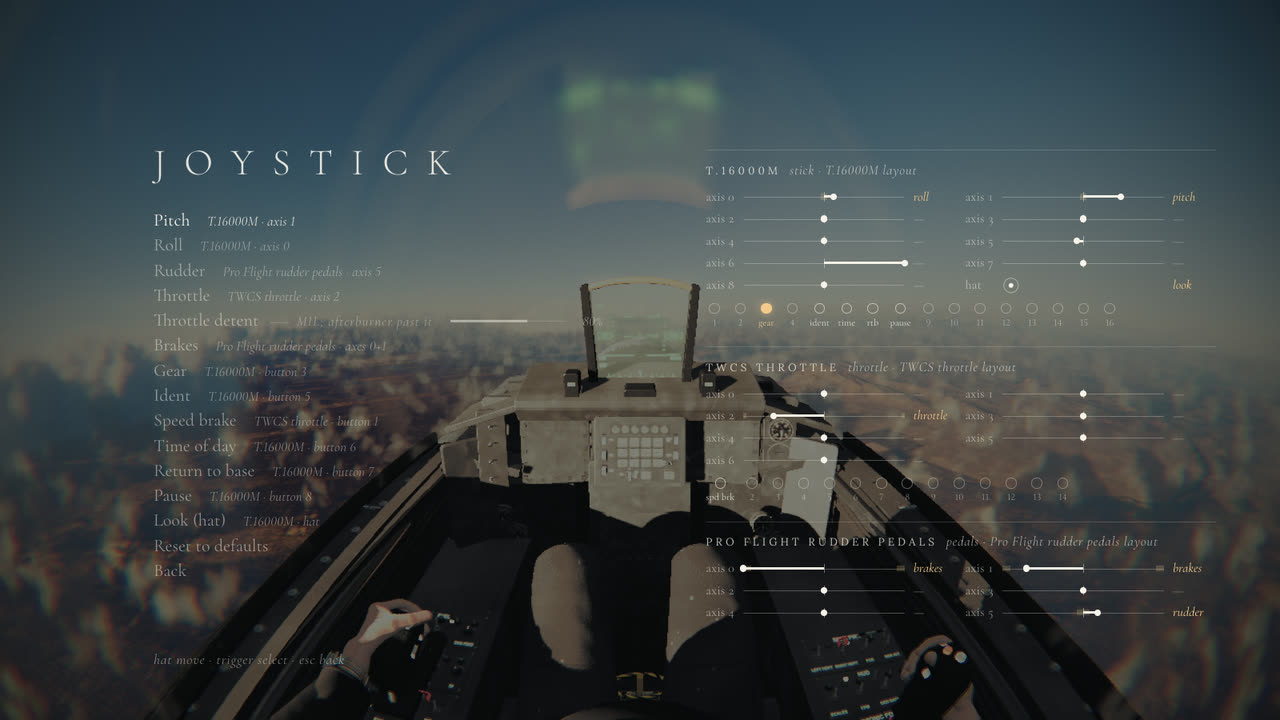
There, each device is identified from its id. Chrome writes “T.16000M (Vendor: 044f Product: b10a)” and Firefox writes “44f-b10a-T.16000M”, so the vendor and product numbers can be pulled out of either. Those pick a profile: the device’s role (stick, throttle, pedals, or a stick and throttle in one), which HID usages it has, and which ones fly what. Because a profile names usages rather than indices, the same profile works in both layouts of Figure 1. If the device reports exactly as many axes as the profile lists, it’s packed; otherwise it’s laid out by usage.
A device with no profile is guessed from its name and its shape. “Pedals” or “rudder” in the name, or three axes and no buttons, means pedals: two toe brakes and a rudder. “Throttle” or “quadrant” means a throttle on its first axis. Anything else is a stick, with X and Y for roll and pitch, a twist if there is one, and a slider if there is one.
Table · The defaults
| Device | Role | Axes (Chrome) | Buttons |
|---|---|---|---|
| Thrustmaster T.16000M | stick | roll 0 · pitch 1 · twist 5 · throttle wheel 6 · hat 9 | 2 brakes · 3 gear · 4 speed brake · 5 ident · 6 time of day · 7 RTB · 8 pause |
| Logitech Extreme 3D Pro, TCA Sidestick | stick | roll 0 · pitch 1 · twist 5 · slider 6 · hat 9 | |
| Thrustmaster TWCS, TCA Quadrant | throttle | throttle 2 (TWCS) · 0 (TCA) | 1 speed brake · 2 gear · 3 ident · 4 time of day · 5 RTB |
| HOTAS Warthog throttle | throttle | throttle 2 (Z) | |
| X56 / X55 throttle, Virpil throttles | throttle | throttle 0 | |
| HOTAS Warthog stick | stick | roll 0 · pitch 1 · hat 9 | 4 brakes (paddle) · 2 gear · 3 speed brake |
| Saitek / Logitech X52, X52 Pro | stick + throttle | roll 0 · pitch 1 · throttle 2 · twist 5 · hat 9 | as the T.16000M |
| X56 / X55 stick, VKB Gladiator, Virpil | stick | roll 0 · pitch 1 · twist 5 · hat 9 | as the T.16000M |
| Saitek Pro Flight pedals, Thrustmaster TFRP / T-Rudder, MFG Crosswind | pedals | toe brakes 0 + 1 · rudder 5 | — |
Several devices at once merge into one set of controls. Each action looks for its best source among everything connected: pedals win the rudder over a stick’s twist, a separate throttle wins over the wheel on a stick’s base, and the stick keeps pitch, roll and the hat. Unplug the pedals mid-flight and the rudder falls back to the twist on the next frame; plug them back in and it returns to them. Anything you bound yourself takes priority over all of this, as long as that device is connected.
Calibration
Settings, Controls, Joystick lists every action with what it’s bound to. Pick one and the page waits for you: it takes a snapshot of every axis and button on every device, then watches for the first new button press, or the axis that has moved furthest from its snapshot, past half its travel. Asking for a particular motion (“pull the stick back”, “push the throttle forward”) means the direction you moved also settles which way round the axis reads, so you rarely need the invert switch. Esc gives up, and so does ten seconds of nothing.
Dead zones and expo
A real stick never quite centres. A worn spring, a cheap potentiometer or a hand resting on the grip leaves it a few percent off, and a jet that reads a constant 3% of roll will slowly bank on its own. So each axis has a dead zone: inside it the stick reads zero, and outside it the remaining travel is stretched back out to full, so the stops still mean full deflection. The default is 4% for pitch and roll and 8% for a twist grip, whose springs are weaker.
After that comes expo. The game raises the stick’s deflection to the power 1.6, then scales it by the stick sensitivity setting (0.9 out of the box). Half deflection gives about a third of the authority, which leaves plenty of fine control around the centre for holding a climb or lining up on final, while the last bit of travel still reaches the full 9 g pull. The fly-by-wire then turns that into a rate or a G, which is a different story, told in the flight note.
Figure 2 · From your hand to the flight computer
src/input/joystick.ts and input.ts): the raw axis on the bottom, what the flight computer receives up the side. The dashed line is a straight, linear stick for comparison. Move the pointer across the chart to trace a deflection; if you have a controller connected and you press one of its buttons, its first axis drives the gold dot instead.The throttle and its detent
A keyboard or a trigger moves the throttle at a rate: hold T and the lever creeps forward. A throttle axis is different. It is a position, and the lever simply goes where it is. That raised a small problem: the game itself sometimes sets the lever, at the start of a session or when the autopilot takes you home, and a throttle resting at idle would drag it straight back. So the throttle axis only takes over once you move it. Until then it waits.
The F-16’s throttle has a detent at MIL, full power without the afterburner. Past it the afterburner lights. On the keyboard the game imitates that with a gate that stops the lever at MIL. On a real throttle the detent is a place on the travel: by default 80%, which you can move to match a physical bump on your own throttle. Around it the lever holds at MIL across a small plateau, so you can find it by feel. Below it the travel maps evenly from idle to MIL; above it, from MIL to full afterburner.
Figure 3 · Where MIL sits
Your controller, live
Figure 4 · What this page can see
No controller yet. Connect one and press any button on it: browsers only reveal a controller once it has been used.
Why the mouse looks, and Shift flies
The same work changed the mouse. It used to be a virtual stick: move it and the jet rolled and pitched, let it rest and the stick sprang back to centre. It worked, but a mouse has no centre to return to and no spring to push against, so the stick only ever knew how fast you were moving, not where you were holding. Flying it meant constant small motions, and looking around needed a right-drag.
Now the mouse is your head. Click once and the game captures the pointer, and from then on the mouse turns the pilot’s head as it would in any first-person game, with a little inertia so the view swings rather than snaps. Stop moving it and after two seconds the head eases back to the GoPro framing, so you can let go of the mouse and fly with the keys without the view drifting. Hold Shift and the mouse becomes the old stick again; let go and the stick recentres while the fly-by-wire holds the attitude you set, which is what makes a short, deliberate input with the mouse enough.
Ctrl and Cmd work as well as Shift, with one caveat. A page can’t block the browser’s own shortcuts, so holding Ctrl or Cmd while you press W (pitch down) will close the tab. Shift is the one that is always safe. And if you liked the old way, Settings, Controls, Mouse swaps them: the mouse flies and Shift looks around.
Figure 5 · Look, then fly
What couldn’t be tested
All of this was built and tested against simulated devices: the test suite replaces navigator.getGamepads with a stick, a throttle and pedals that report exactly as Chrome would, and drives them axis by axis. The default layouts in the table come from how these devices describe themselves over HID and how Chrome lays that out, not from each one on a desk. Vendor software that remaps axes, Linux, Safari and Firefox’s own hat handling will all differ somewhere. That is what the calibration page is for, and why everything on it is saved.